Choose a virtualisation server by measuring the CPU, memory and storage your virtual machines (VMs) use at peak times. Add capacity for the hypervisor and planned growth, then check that the exact server configuration supports your version of VMware ESXi, Microsoft Hyper-V or Proxmox VE. If critical VMs must keep running after a host fails, size the surviving hosts to carry those workloads.
This UK buyer’s guide covers how to size a VM host, choose between new and refurbished hardware, and request a quote you can compare across suppliers. If you already have a specification, browse enterprise servers from Flux IT Hardware.
How do you size a server for virtualisation?
Start with a VM inventory and usage data that captures your busiest periods, including backups, month-end processing and batch jobs. Record peak CPU demand, guest memory requirements, used storage, storage latency and network throughput. For a new deployment, start with the application vendors’ requirements and validate your estimates with a pilot or load test.
CPU and memory
CPU. Compare physical core count and per-core performance. Busy databases and other latency-sensitive applications may benefit from faster cores, while many independent workloads may benefit from more cores. There is no universal vCPU-to-physical-core ratio. If you allocate more vCPUs than physical cores, monitor CPU scheduling wait time under load. Price any per-core software licences against the exact configuration.
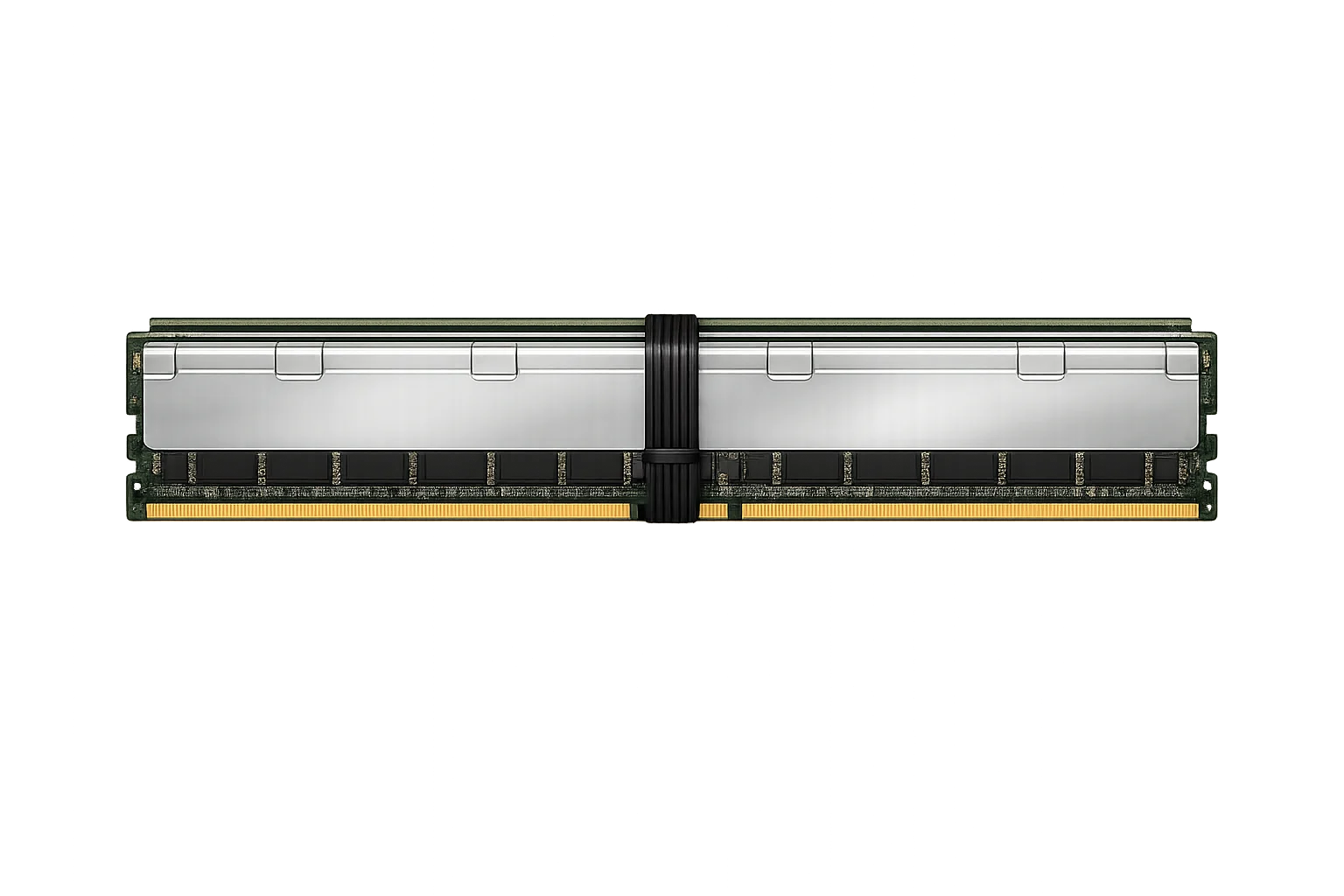
Memory. Add the RAM your VMs need when running together, then allow for the hypervisor, storage services and growth. Check the server’s supported ECC memory, available slots and memory population rules so you can price a realistic upgrade path.
Worked example for 10 virtual machines
Suppose eight application VMs need 8 GB of RAM each and two database VMs need 16 GB each. That is 96 GB for the guests. Add an illustrative 12 GB for the host and storage services, plus 24 GB for growth, and the planning total is 132 GB of RAM. One option to price is a 192 GB configuration, subject to the server’s supported memory combinations. The same VM count could need more memory if the databases grow. For a cluster, repeat the calculation for the VMs each surviving host must run after a failure.
Storage and networking
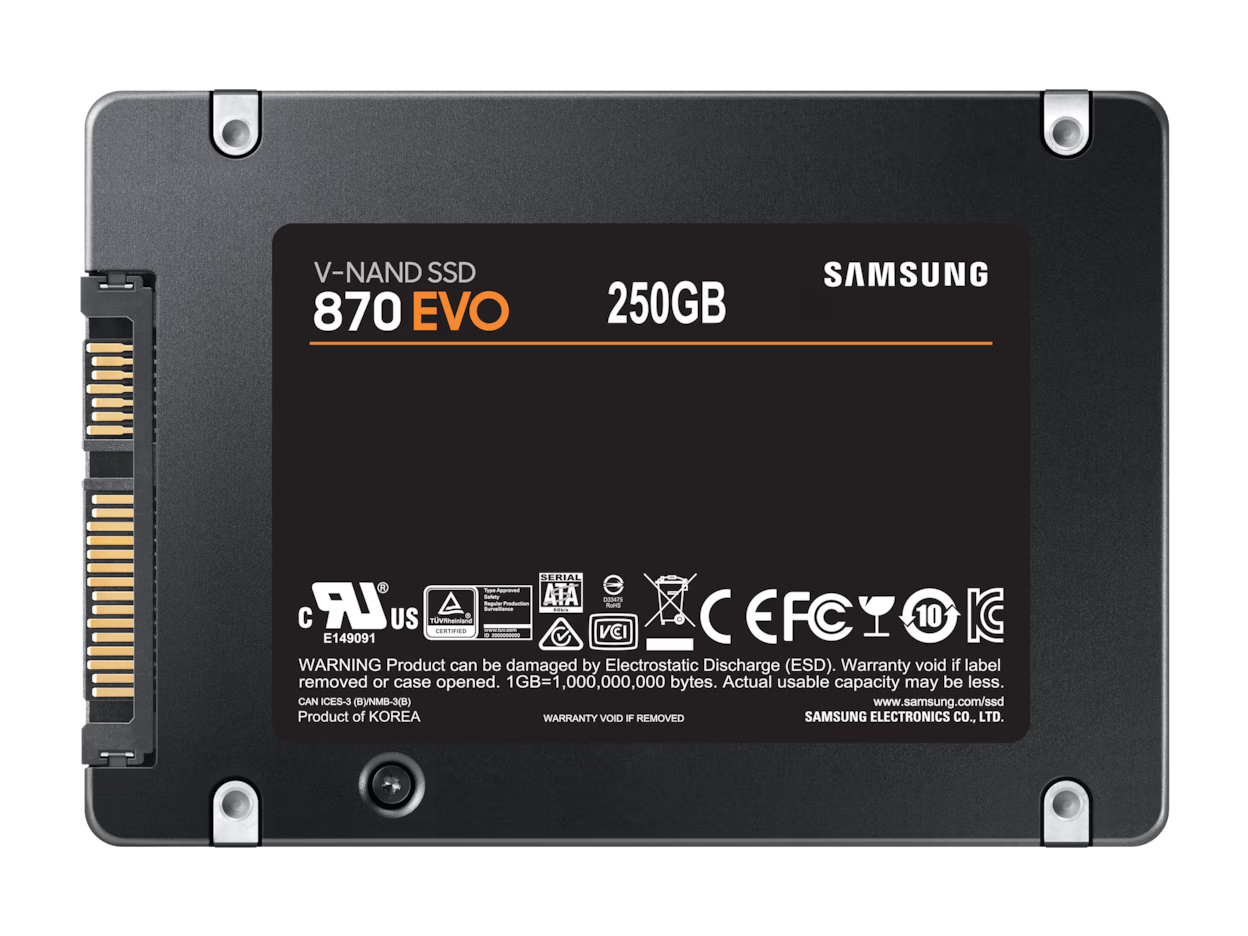
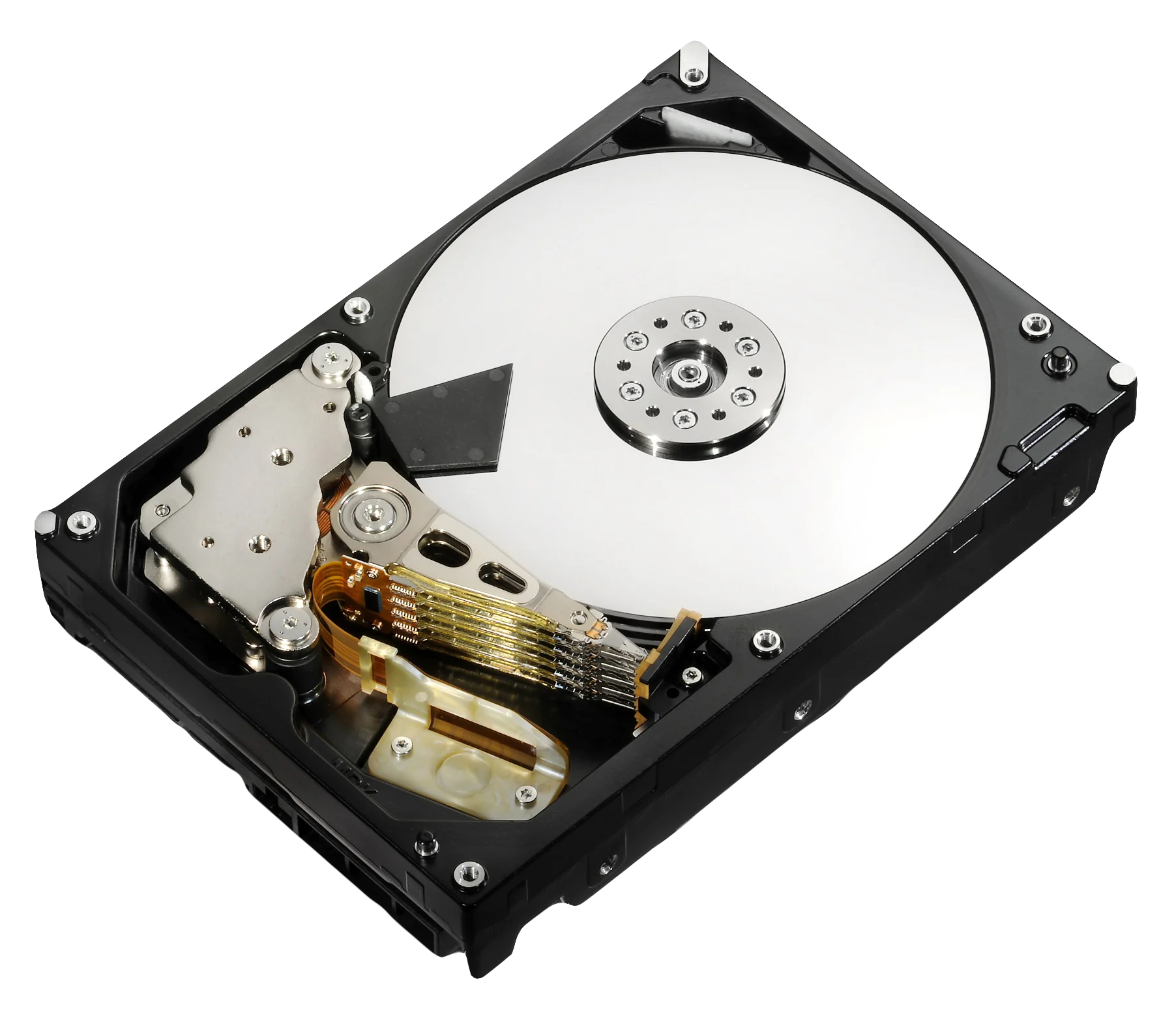
Storage. Size usable capacity after RAID or replication, then allow for snapshots, growth and rebuilds. Compare latency and input/output operations per second (IOPS) during busy periods, especially when VM workloads and backups overlap. Enterprise SATA or SAS SSDs can suit many deployments. Compare NVMe where measured latency or throughput warrants it, and check drive endurance, power-loss protection, and chassis and backplane support.
Networking. Add up traffic from VMs, backups, management, storage and live migration. Consider redundant 10 GbE or faster links when shared storage or concurrent migrations justify them. Include compatible switches, cables or optics, and check that the remaining links meet your needs if one fails.
What hardware works with VMware, Hyper-V and Proxmox?
Check the exact server generation, processor, network adapters, storage controller and firmware against the release you plan to deploy and the versions you expect to upgrade to. A familiar model name such as Dell PowerEdge or HPE ProLiant is a starting point. The components and supported software versions vary by configuration.
- VMware vSphere / ESXi. Use the VMware Compatibility Guide to verify the server and relevant I/O devices for your ESXi release, including the supported driver and firmware combinations.
- Microsoft Hyper-V. Check the hardware requirements for your Windows Server release, including second-level address translation (SLAT) and hardware-assisted virtualisation. For failover clusters, verify certification and run Microsoft’s cluster validation tests.
- Proxmox VE. Check CPU virtualisation support and the storage controller mode against the Proxmox VE requirements. If you plan to use ZFS or Ceph, choose a supported configuration that gives the software direct access to the drives and budget RAM for storage services.
Do you need one virtualisation host or a cluster?
Choose a single host when the business can tolerate downtime during maintenance and the time it takes to restore service after hardware failure. Consider a cluster when workloads need to restart automatically on a surviving host. Check that the remaining hosts have enough CPU, RAM, storage access and network capacity to run the priority VMs under load.
Consider a two-host deployment where the platform supports it and both hosts can carry the required workload individually. Check quorum and witness requirements, along with storage resilience. A three-host design can spread the failover load across two survivors, depending on the platform and storage design. Test failover and restores against your required recovery time and acceptable data loss.
Allow extra RAM on each surviving host for host services and growth. This example assumes automatic failover is configured, the workload splits evenly, and the surviving hosts can access VM storage.
Compare new and refurbished Dell and HPE virtualisation servers
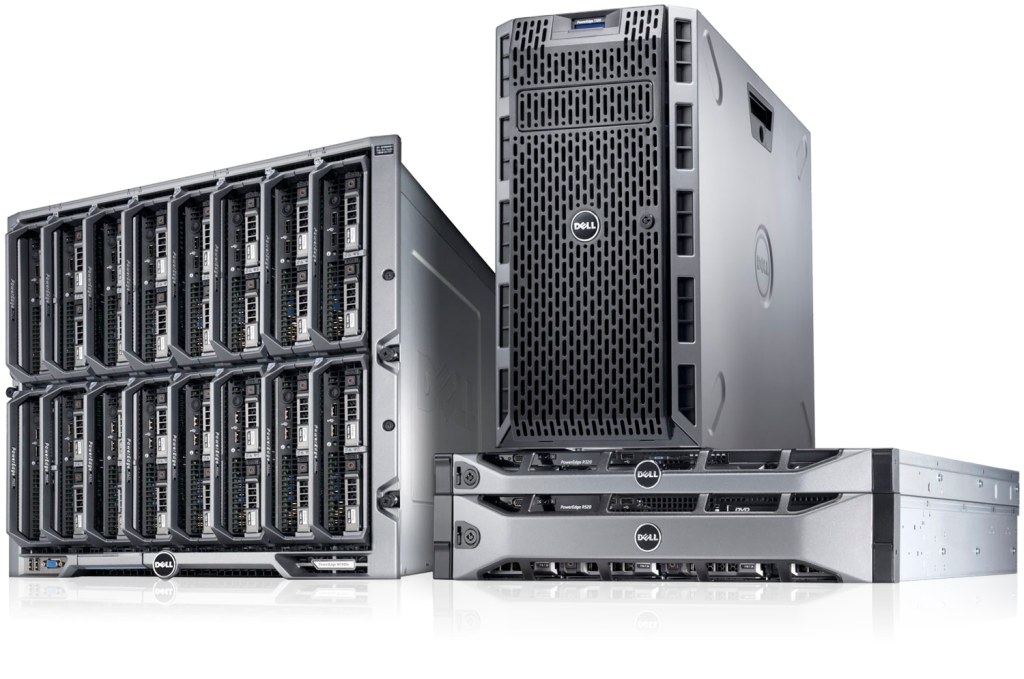
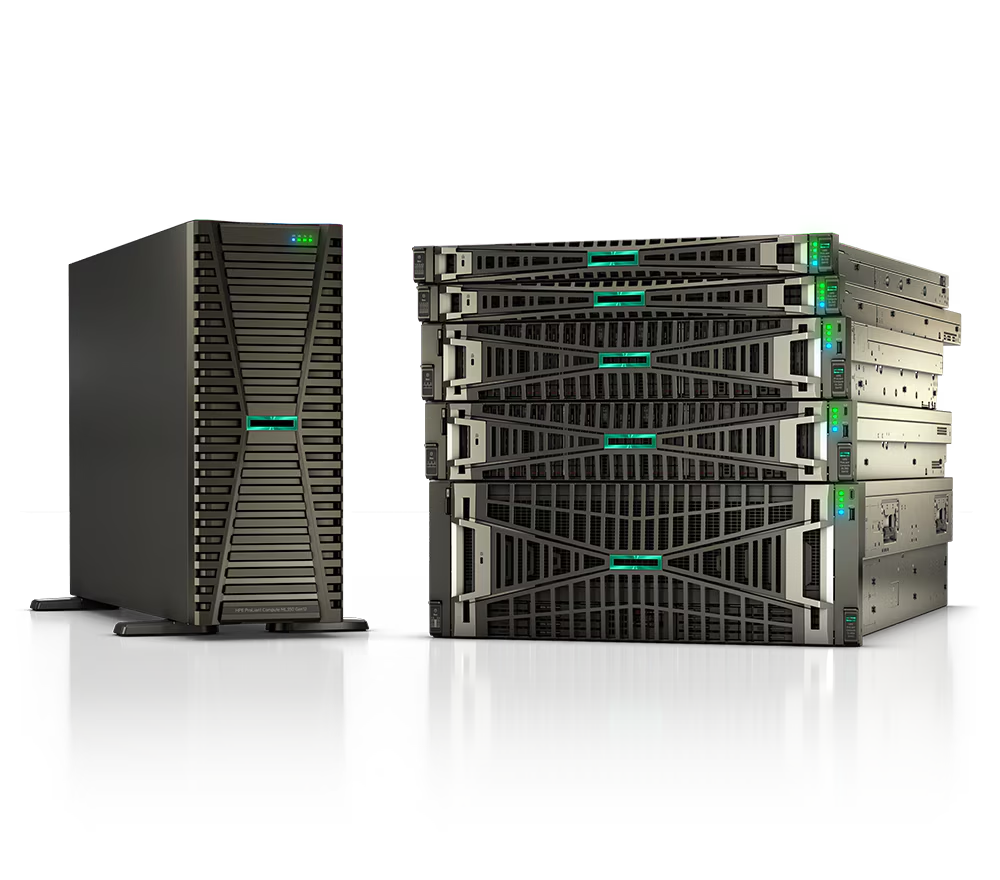
For a small VM setup that fits comfortably within 128 GB of RAM, compare the Dell PowerEdge R360 and HPE ProLiant DL20 Gen11. For a larger cluster, compare the R770 and DL380 Gen12 with the refurbished options below, using the RAM and storage required per node after a host failure.
| Server | CPU options | RAM | Storage options | Best for |
|---|---|---|---|---|
| Dell PowerEdge R360 New, 1U Dell R360 specifications |
1 × Intel Xeon 6300 series, Xeon E-2400 or Pentium | Up to 128 GB DDR5 ECC UDIMM | Up to 8 × 2.5-inch or 4 × 3.5-inch SAS/SATA drives | Small offices or branches running light infrastructure and application VMs. |
| HPE ProLiant DL20 Gen11 New, 1U HPE DL20 Gen11 QuickSpecs |
1 × Intel Xeon 6300 series, Xeon E-2400 or Pentium | Up to 128 GB DDR5 ECC UDIMM | Up to 6 × 2.5-inch SAS/SATA with the optional two-drive kit, or 2 × 3.5-inch SAS/SATA | Small VM estates at sites with limited rack depth. Check rail and cable clearance. |
| Dell PowerEdge R770 New, 2U Dell R770 configurations and features |
Up to 2 × Intel Xeon 6 | Up to 8 TB DDR5 RDIMM across 32 slots | 2.5-inch SATA or mixed SATA/NVMe, with E3.S NVMe chassis options | Larger clusters consolidating many VMs, especially those using local NVMe storage. |
| HPE ProLiant Compute DL380 Gen12 New, 2U HPE DL380 Gen12 QuickSpecs |
Up to 2 × Intel Xeon 6 | Up to 8 TB DDR5 RDIMM across 32 slots | 2.5-inch or 3.5-inch SAS/SATA, with U.3 or E3.S NVMe options | Memory-intensive clusters that need room for additional network adapters or storage. |
| Dell PowerEdge R640 Refurbished, 1U Dell R640 technical guide |
Up to 2 × Intel Xeon Scalable, including 2nd Gen | 24 DDR4 slots, up to 3 TB with LRDIMMs | Up to 10 × 2.5-inch SAS/SATA or NVMe, or 4 × 3.5-inch SAS/SATA | Rack-constrained cluster expansion, especially with shared storage or modest local storage needs. |
| Dell PowerEdge R740 Refurbished, 2U Dell R740 spec sheet |
Up to 2 × Intel Xeon Scalable, including 2nd Gen | 24 DDR4 slots, up to 3 TB with LRDIMMs | Up to 16 × 2.5-inch or 8 × 3.5-inch SAS/SATA drives | Memory-heavy VMs or an existing PowerEdge cluster that needs more room for local drives. |
| HPE ProLiant DL380 Gen10 Refurbished, 2U HPE DL380 Gen10 QuickSpecs |
Up to 2 × Intel Xeon Scalable, including 2nd Gen | 24 DDR4 slots, up to 3 TB with LRDIMMs | Front options include 24 × 2.5-inch or 12 × 3.5-inch SAS/SATA, with NVMe on selected builds | Expanding a Gen10 estate where the team already uses iLO 5 and can share compatible spares. |
The table shows platform options. Confirm installed RAM and supported upgrades, as well as the drive cages, backplane and controller included in the quote. Published maxima depend on the configuration.
The 132 GB planning total in the 10-VM example exceeds the memory limit of the R360 and DL20 Gen11. For a larger cluster, size RAM per surviving node. If critical VMs need 600 GB in total at peak and can be split evenly across two surviving hosts, each needs at least 300 GB for guests, plus capacity for host services and growth. Check CPU and storage performance in the same failure scenario.
Should you buy a new or refurbished virtualisation server?
Compare new and refurbished enterprise servers over your planned service life. A refurbished host can suit an expansion or refresh when it supports the required hypervisor version, has an adequate firmware support window and comes with suitable replacement cover. Consider new hardware when you need a longer support runway, current I/O options or a specific manufacturer service agreement.
Ask for the exact configuration, the condition of the drives and any available health reports, firmware access, warranty exclusions and the replacement turnaround for your UK site. Compare total cost over the same period, including licences, power, support, spares and any switch or storage upgrades. A server with a lower purchase price can cost more to operate or license.
For production, check the exact CPU, network and storage components against both your current hypervisor release and your next planned upgrade. If you are adding a node to an existing cluster, confirm that live migration works between the proposed and existing CPUs. Refurbished is worth buying when the savings still hold after power, licences and replacement cover, and the hardware can stay supported for as long as you plan to run it.
What should you include in a virtualisation server quote request?
- Hypervisor and version, plus the number of hosts and any planned upgrades.
- VM count, main workloads, peak CPU and RAM demand, and expected growth.
- Usable storage requirement, latency or IOPS targets, and local, shared or distributed storage preference.
- Network port speeds and count, rack depth, available rack space and power feeds.
- Required failover capacity, backup platform and recovery targets.
- New or refurbished preference, delivery postcode, target date and support requirements.
Ask for an itemised quote showing CPU models and core counts, installed RAM and free slots, drive models, the storage controller, network adapters, remote management licensing, rails and power supplies. Confirm lead time and whether prices include VAT so you can compare like for like.
Trade in your existing servers when you upgrade
Replacing a Dell PowerEdge or HPE ProLiant fleet? Flux IT Hardware’s Trade-In, Trade-Up programme offers a free valuation for surplus equipment. Eligible hardware can earn a rebate towards a new or refurbished purchase. Send the models, quantities, configurations and condition of the servers you are retiring, along with your replacement requirements. Ask for the trade-in valuation alongside the hardware quote so you can compare the net upgrade cost. Request a Flux IT Trade-In, Trade-Up quote.
Virtualisation server FAQs
How many virtual machines can one physical server run?
There is no fixed number. The practical limit is whichever resource runs out first at peak load, such as available RAM, CPU capacity, storage performance or network bandwidth. Ten lightly used application VMs and ten busy database VMs can need very different hardware.
Is 128 GB of RAM enough for a virtualisation server?
128 GB can be enough when the VMs, hypervisor, storage services and growth allowance fit within it during peak demand. In the 10-VM example above, the budget reaches 132 GB, so 128 GB falls short. If the host is part of a cluster, include any VMs it would take on after a failure.
Is a single-socket server enough for virtualisation?
Yes, if one processor provides enough cores, memory capacity and PCIe connectivity for your workloads. Compare a dual-socket system when you need more memory slots, cores or expansion. Include the licensing cost of the proposed core count in the comparison.
Do virtualisation servers need shared storage?
Local storage can work for a standalone host. In a cluster, choose a supported storage design that lets surviving hosts access or recover the VM data after a node fails. Depending on the platform, that can mean shared storage, distributed storage or replication with an acceptable recovery point.
Does a virtualisation cluster replace backups?
No. A cluster can help restart workloads after a host failure. Keep independent backups and test restores so you can recover from data deletion, corruption or the loss of the storage system.